What is OpenClaw?
OpenClaw is an open-source AI agent that runs on your server and allows you to automate tasks, interact with AI models, and build AI-powered workflows.
How to install OpenClaw?
We provide an easy method to install OpenClaw to new Linux VPS and existing Linux VPS.
For new Linux VPS:
You can purchase a Linux VPS on our website and install the OpenClaw add-on with no additional costs. Just need to choose the OpenClaw template when ordering it, we will handle the installation for you. Once we finish it, you will receive a notification. Then you will need to do 2 things:
1. Connect to your VPS through SSH.
2. Complete OpenClaw onboarding, for detailed steps, please kindly refer to step 4 in the section "For existing Linux VPS" below.
For existing Linux VPS:
Below you will find detailed guidelines on installing and starting OpenClaw manually(This article uses Ubuntu as an example).
Step 1: Connect to your server through SSH.
Step 2: Update all packages.
sudo apt update
Step 3: Install OpenClaw(make sure curl is installed, if not, run 'sudo apt install curl' first).
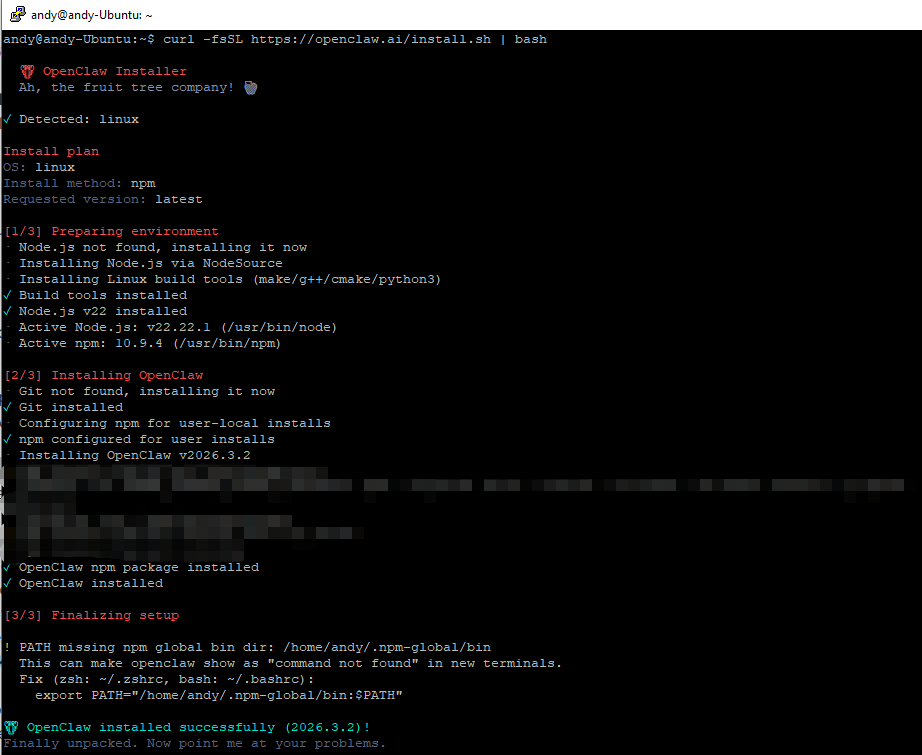
curl -fsSL https://openclaw.ai/install.sh | bash
That’s it — the script handles Node detection, installation, and onboarding. Like this screenshot:
Step 4: Complete the OpenClaw onboarding
During onboarding, you will be guided through several steps, including:
-
Security warning
-
Onboarding mode
-
Model and authentication provider
-
Select your AI provider (e.g. OpenAI).
-
Choose the authentication method.
-
Enter a valid API key for the selected provider. A valid API key is required for OpenClaw to function.
⚠️ Important: OpenClaw may use third-party APIs (such as OpenAI), which can result in additional usage-based costs. Please note that you are responsible for securing your server, API keys, and for how OpenClaw is used.
-
Channel selection
-
Choose how OpenClaw will receive messages (e.g. Telegram, WhatsApp, Discord, etc.).
-
You can also skip this step and configure channels later.
-
Skill configuration
-
You may be prompted to configure skills.
-
Some skills require additional dependencies or API keys.
-
You can skip optional skills and enable them later.
And so on... You can configure OpenClaw as you need, also, you can easily change above settings anytime.
After installation:
- Add npm global bin dir to path.
echo 'export PATH="$(npm config get prefix)/bin:$PATH"' >> ~/.bashrc
source ~/.bashrc
- Verify everything is working
openclaw doctor # check for config issues
openclaw status # gateway status
openclaw dashboard # open the browser UI
Now, let's access your OpenClaw. There are 2 methods:
1. Start the Terminal UI (Recommended)
For a terminal-based interface:
openclaw tui
This is the recommended way to interact directly with your agent.
2. Accessing OpenClaw Control UI (Advanced)
OpenClaw does not expose a public web interface by default.
Instead:
- The OpenClaw Control UI runs on the server itself
- It listens on localhost(127.0.0.1), usually on port 18789
If you want to access the Control UI from your local computer, you must use SSH port forwarding. Please follow these steps:
- Open a terminal on your local computer
- Run the following command (replace the IP address with your VPS IP)
ssh -N -L 18789:127.0.0.1:18789 root@<your-server-ip>
- Keep the terminal window open while using the Control UI. If you close the SSH session, the Control UI will no longer be accessible.
- Open your web browser and go to http://localhost:18789/
This securely forwards the OpenClaw web interface from your VPS to your local machine without exposing it publicly.
When accessing the OpenClaw Control UI for the first time, it may not automatically connect to the OpenClaw gateway service because OpenClaw requires a gateway token to establish the connection. You can try these 2 options:
Option 1: Use the token from onboarding
During the onboarding process, OpenClaw generates a secure token (or tikenized link). If you saved this link, you can:
- Open the tokenized link directly in your browser
OR
- Paste the gateway token into the relevant field in the Control UI
If you missed or did not save the token during onboarding, you can generate a new access link at any time.
Option 2 (Recommended): Generate the dashboard link again
Connect to your VPS and run
openclaw dashboard
You will get a new secure access link containing the required token, you can then:
- Open the generated link directly in your browser
OR
- Copy the token and paste it into the Control UI connection field.
Once the token is accepted, the Control UI will connect to the running OpenClaw gateway service.
⚠️Important notes
- OpenClaw may generate costs through third-party services (e.g. OpenAI API usage)
- You are responsible for managing API keys, usage limits, and security
- Smarterasp does not control or monitor how OpenClaw is used
Resources
Please note that after the installation, you are responsible for maintaining, updating, and troubleshooting the application. In case you need assistance, please refer to the official resources: